How to Spell Check on Google Docs: Turn It On and Fix Common Problems
A practical, version-neutral guide to Google Docs spelling suggestions, proofing language, browser settings, and a reliable final review.

The Fastest Way to Spell Check on Google Docs
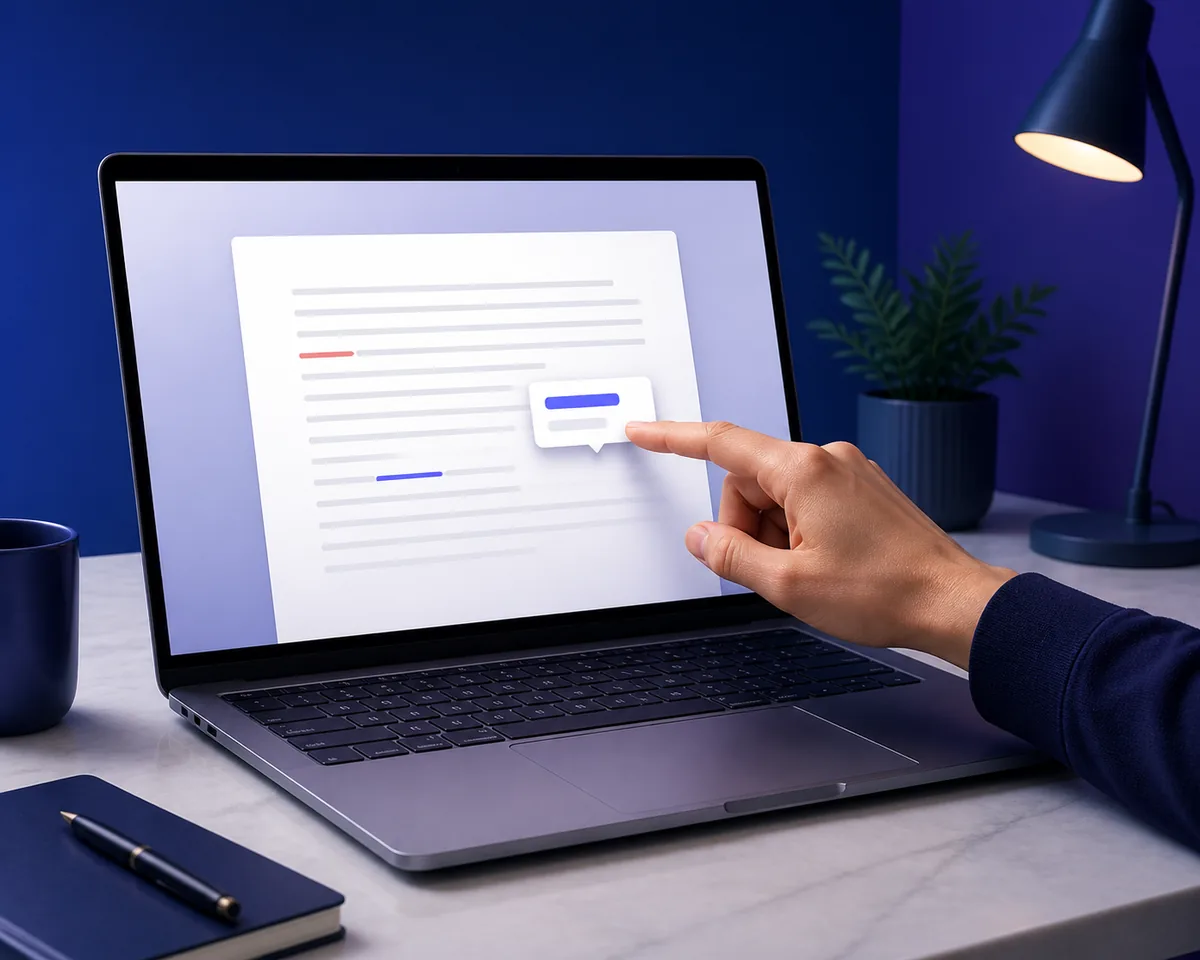
If you only need to check a short document, open it in Google Docs and start reading from the beginning. Misspelled words may receive a colored underline while you type. Select or right-click an underlined word to review the suggested correction, then accept it only when the replacement matches your meaning.
For a complete pass, use the Tools menu and open the spelling and grammar review. The exact wording can change as Google Docs updates its interface, but the goal is the same: move through possible spelling and grammar issues one by one instead of relying on the first underline you notice.
A spelling suggestion is not proof that the entire sentence is correct. A dictionary may accept a typo that forms another real word, while a correct name, product term, URL, or abbreviation may be flagged as unfamiliar. That is why a good Google Docs spell check routine combines automatic suggestions with a final read-through.
When the document is important, keep the original meaning in view. Do not accept every suggestion automatically, especially when the sentence includes names, numbers, quoted text, code, or a mixture of languages.
After Google Docs finishes its first pass, you can use the free AI spell checkerfor a separate review of the copied text.
How to Turn On Google Docs Spell Check
Use this sequence when you want to turn on automatic spell check or confirm that the manual review is available. The steps are deliberately simple so you can test one setting at a time.
- Open the document Click inside the document body and make sure you are editing the correct file. A view-only document may not show every writing control.
- Check the document language Open the language setting under File or the document preferences area, then choose the language that matches most of your text. A language mismatch can change which words are flagged.
- Look for automatic suggestions Type a short sentence with an obvious spelling mistake. Wait for the underline or suggestion to appear instead of testing only with a pasted paragraph.
- Run the manual review Open Tools and choose the spelling and grammar review command. Read each suggestion and decide whether it preserves the sentence you intended to write.
- Read the saved draft once more After accepting useful changes, read the full document for names, dates, links, numbers, tone, and formatting. Those details are outside a dictionary check.
A deliberately misspelled test sentence is useful because it separates a settings problem from a document problem. If the test word is underlined, the checker is available and the original issue may be a language choice, formatting, or an unfamiliar term. If nothing happens, continue with the troubleshooting section rather than changing many settings at once.
The manual review and the red underline serve different purposes. Automatic suggestions are convenient during drafting, while a manual review gives you a focused second look near the end. Use both when the document will be submitted, published, or sent to someone else.
How Google Docs Spelling and Grammar Checks Work
Google Docs spelling and grammar suggestions are related, but they are not identical. Spelling suggestions compare words with language rules and dictionaries. Grammar suggestions consider how words work together in a sentence. Either type of feedback can be limited by language, document context, or an unusual term.
Spelling is not the same as proofreading
Spell check is good at highlighting many typographical errors, repeated letters, and words that do not fit the selected language. It is less reliable when two valid words are confused, when a sentence is technically grammatical but unclear, or when a proper noun is unfamiliar.
Proofreading also includes meaning and presentation. Read the document for missing words, repeated ideas, incorrect figures, broken links, headings, citations, and whether the tone fits the reader. A clean spelling report is only one part of that process.
- Spelling checks whether a word fits the selected language dictionary.
- Grammar suggestions look at relationships between words and sentences.
- Autocorrect can change text while you type and is separate from a final review.
- Names, URLs, codes, and specialist terms often need manual confirmation.
Why the same document can show different suggestions
The document language, browser language, account context, and pasted formatting can all affect what you see. A paragraph copied from another application may contain mixed language markers or formatting that makes an underline easy to miss. Short text can also provide too little context for a useful grammar suggestion.
Do not judge the checker from one unusual word. Test a plain sentence in a new line, then compare the behavior with the part of the document that is causing trouble. This small experiment is usually faster than turning every writing feature off and on.

What to Do When Google Docs Spell Check Is Not Working
When Google Docs is not underlining a spelling mistake, avoid changing several settings at the same time. Type the same short test sentence after each check so you can see which change actually helps.
| What you notice | Likely area | Next check |
|---|---|---|
| No underline in a new sentence | Editing state or language | Click in normal body text, set the language, and test again. |
| Only one language behaves strangely | Document language | Choose the language used by the paragraph and retest. |
| Pasted text is inconsistent | Formatting or mixed text | Type a plain test sentence and inspect the pasted block separately. |
| Browser window changes the result | Extension or browser setting | Compare a private window and re-enable extensions one by one. |
| Suggestions look plausible but the draft is unclear | Context and tone | Read the complete document and run a second review. |
1. Confirm that you can edit the document
A view-only file, a comment field, or a protected section may not behave like the main document body. Click in ordinary paragraph text and type a fresh test sentence before assuming the checker is broken.
2. Check the document language
If the document is set to the wrong language, valid words may be flagged and obvious errors may be missed. Choose the language used by most of the document, then review names and quoted text separately. Mixed-language work often needs more than one deliberate pass.
3. Test the browser and extensions
Browser spell check and Google Docs suggestions are separate systems. If the document behaves differently in a private window or when a writing extension is disabled, re-enable extensions one at a time to find the conflict. Do not treat a browser setting as a replacement for the document language setting.
4. Review unusual content manually
A product name, username, code sample, URL, citation, or newly coined term may be correct even when it receives a warning. Compare the suggestion with the source or style guide before accepting it.
Troubleshooting takeaway
The goal is not to remove every underline. The goal is to choose the right language, understand why a word was flagged, and keep the correction only when it matches the meaning you intend.
Check Language, Browser Settings, and Mixed Text
The phrase Google Docs spell check language points to a real source of confusion: the checker needs to know which spelling and grammar rules to apply. The language of the document is more important than the language of your operating system or the language of one pasted sentence.
For a document written in one language, choose that language for the main body. For a multilingual document, decide which sections need the most careful review and check each section with the appropriate language. A language selector is not a translation tool; it only tells the proofing system which rules to use.
Browser spell check can add another layer of underlines, but it does not make the Google Docs document language correct. If two layers of suggestions appear, compare them instead of accepting the first change automatically. Extensions can also add suggestions that are not produced by Google Docs itself.
If a document contains a signature, bibliography, code, or a large block copied from another source, review those parts separately. This reduces noise and makes it less likely that you change a correct name or technical expression simply because it is unfamiliar.
Language checklist
- Set the document to the language used by most of the body.
- Review each language section separately when the document is multilingual.
- Treat names, URLs, codes, citations, and product terms as manual-review items.
- Test a plain sentence after changing a language or browser setting.
- Keep the final correction only when it preserves the intended meaning.
If the document needs a broader grammar and clarity pass, continue with the grammar checkerafter you confirm the Google Docs language.
A Reliable Final Review Before Sharing
Google Docs spell check is a useful first layer, not a guarantee that a document is ready. A short final process catches errors that dictionaries and grammar suggestions cannot see.
- Run automatic and manual suggestions Review the underlines and then run the manual spelling and grammar check. Accept a change only when it matches the sentence you meant to write.
- Read once for meaning Look for missing words, unclear references, repeated ideas, and sentences that are grammatically correct but difficult to follow.
- Verify facts and formatting Check names, dates, numbers, links, citations, headings, tables, and whether the final layout still looks correct.
- Use a second checker when the stakes are high Copy a safe version of the draft into an independent spelling and grammar checker for another perspective, then compare suggestions with your original meaning.
- Read the shared version once more Review the exact version you will submit or share. Comments, tracked edits, and late formatting changes can introduce new mistakes.
A second checker is most useful as a review aid, not as an automatic rewrite. Keep the authorial voice, check every suggested change, and avoid replacing a precise technical term with a more common but less accurate word.
For email, the same two-pass habit works with the site's Gmail Spell Check and Outlook Spell Check guides. The menus differ, but the principle is shared: use built-in suggestions while writing, then deliberately review the finished text before it leaves your workspace.
For a similar document workflow in Microsoft Word, see the Microsoft Word spell check guideinstead of applying a Google Docs menu path.
Final rule
Use Google Docs to catch likely spelling and grammar problems, then use context, language awareness, and a final read-through to decide whether the document is truly ready.
Google Docs Spell Check FAQ
How do I spell check on Google Docs?
Open the document, watch for colored underlines while you type, and use Tools to start the spelling and grammar review. Read each suggestion before accepting it.
How do I turn on automatic spell check on Google Docs?
Type a short test sentence in an editable document and confirm that likely spelling mistakes receive underlines. If they do not, check the document language, editing permissions, browser settings, and extensions.
Why is Google Docs not underlining spelling mistakes?
Common causes include a wrong document language, view-only access, browser or extension interference, unusual pasted formatting, and words that are names or technical terms. Test a plain sentence after checking each area.
Does Google Docs check grammar as well as spelling?
Google Docs can provide spelling and grammar suggestions, but they are different types of feedback. A suggestion is not a complete proofread and should be checked against the meaning of the sentence.
Can Google Docs check multiple languages?
You can review multilingual text, but a single document language may not be ideal for every paragraph. Set the main language, review other language sections separately, and check names or quotations manually.
Does browser spell check replace Google Docs spell check?
No. Browser spell check and Google Docs suggestions are separate systems. A browser setting may add or remove underlines, but it does not replace the document's proofing-language choice.
Should I use another checker after Google Docs?
A second review is sensible for academic, customer-facing, published, or high-stakes documents. Compare the suggestions with your intended meaning instead of accepting an automatic rewrite.