Microsoft Word Spell Check: How to Use It and Fix Common Problems
A practical guide to running Word spell check, understanding Microsoft Editor, fixing proofing settings, and adding a final online review before you send or submit a document.

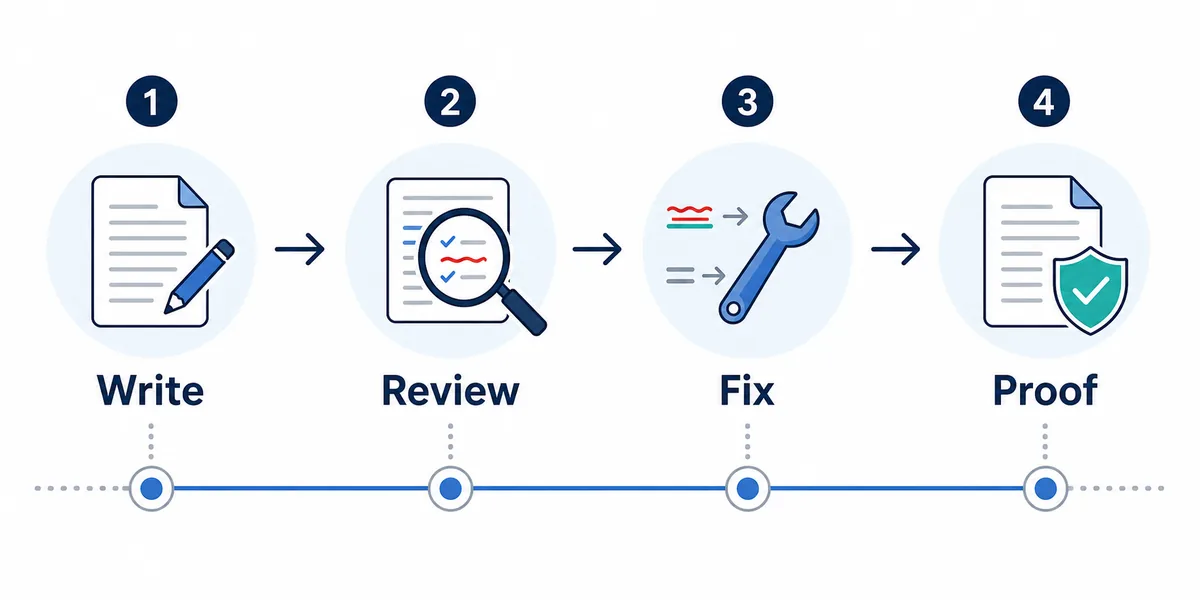
The Fastest Way to Spell Check in Microsoft Word
For most documents, the shortest path is Review > Editor. Word scans the document, groups suggestions by spelling, grammar, and writing clarity, and lets you accept, ignore, or revise each item.
- Open the document and go to Review. Use the Review tab when you want a deliberate full-document check instead of waiting for underlines as you type.
- Choose Editor or Spelling & Grammar. Current Microsoft 365 versions usually show Editor; older Word versions may show Spelling & Grammar.
- Review each suggestion manually. Accept corrections only when they preserve your meaning, technical terms, names, and preferred style.
- Read the corrected paragraph again. Spell check can catch errors, but final proofreading catches tone, missing facts, and awkward transitions.
The F7 shortcut is still useful when you want to start the checker quickly from the keyboard. On some laptops you may need Fn + F7 depending on function-key settings.
Word also checks as you type. Red or blue underlines can help during drafting, but they are easy to miss in long reports, essays, resumes, or copied text. A final manual pass is safer.
Best practice
Use Word for document-aware proofing, then do one final read in context before you rely on the corrected version.
How to Run Word Spell Check Step by Step
The exact labels vary by Word version, but the workflow is consistent across Microsoft 365, Word for Windows, Word for Mac, and Word for the web.
- Save a copy if the document is important. Before a large proofing pass, keep a version you can compare against if a suggested rewrite changes meaning.
- Select the text or leave nothing selected. Selected text limits the check to that passage. No selection usually checks the full document.
- Open Review > Editor. Use the Editor pane to move through spelling, grammar, conciseness, and clarity suggestions.
- Check document language. If the document mixes English variants or pasted multilingual text, set the proofing language for the selected section.
- Accept, ignore, or add names to the dictionary. Add proper nouns only when you are confident they are spelled correctly; otherwise ignore once.
For resumes, contracts, academic papers, and client documents, avoid accepting every suggestion in bulk. Word can misunderstand brand names, code terms, citations, intentional fragments, and specialized vocabulary.
If you paste text from a website or PDF, Word may inherit formatting and language metadata. Clearing formatting or resetting the proofing language often makes the checker behave normally again.
Spell Check vs Microsoft Editor: What Each One Does
People search for Microsoft Word spell check, but modern Word often routes the experience through Microsoft Editor. Knowing the difference helps you choose the right review depth.
A good proofing routine uses more than one signal. Word is strong because it knows the document context. An online checker is useful when you want a fresh pass after exporting, copying, or changing the text outside Word.
If your main concern is grammar rather than spelling, use the Grammar Checker page on this site for a focused second pass. If the issue is sentence flow, use Sentence Checker after Word catches basic typos.
| Feature | Best for | Watch out for |
|---|---|---|
| Spelling suggestions | Typos, misspelled words, duplicated letters, and obvious word errors. | Names, product terms, code, and non-English words may be flagged even when correct. |
| Grammar suggestions | Agreement, verb tense, punctuation, articles, and common grammar patterns. | Grammar suggestions can miss context or overcorrect a sentence with a deliberate style. |
| Editor clarity suggestions | Conciseness, formal tone, readability, and phrasing improvements. | Clarity suggestions may flatten voice, nuance, or persuasive writing if accepted blindly. |
| Online checker final pass | A second review after copying text from Word, email, or a browser editor. | Use it for review and comparison, not as a replacement for human judgment. |
Why Word Spell Check Is Not Working
When Word stops underlining mistakes or skips obvious errors, the cause is usually a setting rather than a broken document.
A common trap is mixed-language text. A document can look like English while a section is internally marked as another proofing language. In that case, Word may skip checks or apply the wrong dictionary.
Another trap is the Do not check spelling or grammar setting. It can be attached to selected text and travel with copied content, so only part of the document may be ignored.
| Symptom | Likely cause | What to check |
|---|---|---|
| No red or blue underlines appear | Proofing is disabled or suggestions are hidden. | Check File > Options > Proofing and make sure spelling and grammar checks are enabled. |
| Only one paragraph is ignored | That paragraph is marked Do not check spelling or grammar. | Select the text, open Language settings, and clear the exclusion. |
| Correct words are flagged as wrong | The proofing language does not match the text. | Set the correct language for the selected text, such as English US or English UK. |
| Technical names keep being flagged | Word does not know the term. | Add trusted terms to the dictionary or ignore them one by one. |
| Copied text behaves differently | Formatting or language metadata came from another source. | Paste as plain text or clear formatting, then set the proofing language again. |
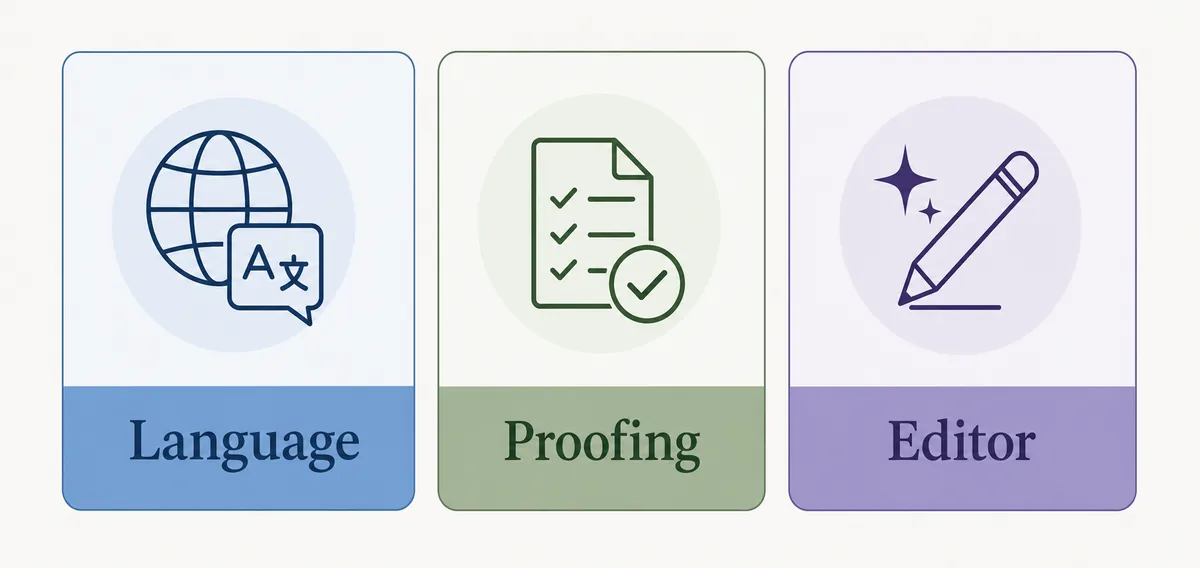
When to Use an Online Spell Checker After Word
Word is the right first pass for documents, but a separate checker is useful when the text will leave Word and appear in email, a form, a CMS, a school portal, or a browser app.
- Run Word Editor first. Fix document-level issues while you can still see headings, footnotes, tables, and formatting.
- Copy the final text into AI Spell Check. Use the online checker for a fresh pass on spelling, grammar, and punctuation after the main edit.
- Compare the corrected version. Review meaning, names, citations, numbers, and tone before copying anything back.
- Use a focused tool if needed. Use the Punctuation Checker, Sentence Checker, or Grammar Checker when one issue needs closer attention.
This is especially useful for emails copied from Word, cover letters, scholarship essays, product descriptions, and short business documents where a second review can catch mistakes introduced during editing.
Do not paste confidential or legally sensitive material into any online tool unless your organization allows it. For sensitive documents, use Word locally and review manually.
Privacy note
For sensitive contracts, medical records, unpublished research, or private customer data, prefer local review in Word and avoid external tools unless your policy permits them.
Microsoft Word Spell Check FAQ
What is the shortcut for spell check in Word?
F7 starts spelling and grammar review in many Word versions. On some laptops you may need Fn + F7.
Why is Word not checking spelling?
The most common causes are proofing being turned off, the wrong proofing language, text marked Do not check spelling or grammar, or suggestions hidden in Word options.
Does Word check grammar as well as spelling?
Yes. Modern Word uses Microsoft Editor for spelling, grammar, and writing suggestions, though available checks vary by version and subscription.
Should I accept every Word suggestion?
No. Review suggestions manually because Word can misread names, specialized terms, quotations, fragments, or intentional style choices.
Can I use AI Spell Check with Word documents?
Yes. Copy text from Word, run a focused online review, compare the corrected text, and paste back only changes you trust.