Gmail Has Built-In Suggestions
Gmail lets users turn spelling suggestions, grammar suggestions, and autocorrect on or off in Settings. If those options are disabled, Gmail may not underline or fix mistakes in drafts.
Paste your Gmail draft, catch spelling mistakes, fix grammar, and copy the corrected version back into Gmail. Useful when Gmail suggestions are not enough or you want a full review before hitting send.
Original Email Draft
Hi Sarah, I recieved your update and wanted to follow up about tommorows meeting.
Their are a few details we still need too confirm before we send the final email.
Can you review the attatched file and let me know if its ready to share?
Thanks again, I appreciate you're help on this project.
Corrected Draft
Hi Sarah, I received your update and wanted to follow up about tomorrow's meeting.
There are a few details we still need to confirm before we send the final email.
Can you review the attached file and let me know if it's ready to share?
Thanks again, I appreciate your help on this project.
What Was Fixed
4 spelling errors corrected
4 grammar and punctuation issues fixed
Gmail has built-in spelling, grammar, and autocorrect suggestions, but users also run into browser-level spell check settings and language limitations.
Gmail lets users turn spelling suggestions, grammar suggestions, and autocorrect on or off in Settings. If those options are disabled, Gmail may not underline or fix mistakes in drafts.
Many Gmail spell check problems are actually caused by browser spell check settings. If Chrome spell check is off, Gmail users can assume Gmail itself is broken.
A separate checker is useful when you want to proofread a full draft before sending, compare edits in one place, or review a draft when Gmail suggestions are limited.
Copy the email draft from Gmail and paste it into the checker above. This works well for business emails, client replies, support messages, and follow-up notes.
Run a full check if you want a complete review, or use spelling only if you only need typo correction. The tool highlights what changed so you can review before sending.
After reviewing the corrections, copy the improved version back into Gmail and send it with more confidence. This is especially useful for important drafts or customer-facing emails.
For Gmail spell check not working queries, review Gmail settings, browser language settings, and draft language before assuming the message editor is broken.
Gmail > Settings > See all settings > General
Make sure these Gmail options are enabled:
Chrome > Settings > Languages > Spell check
Chrome also has its own spell check controls. If browser spell check is disabled, users often think Gmail itself stopped working.
Applies to both Gmail and browser settings
Gmail suggestions may not be equally available in every language. If your draft language is not well supported, paste the text here first and review it externally.
Use this page to review follow-up emails, sales emails, customer support replies, job applications, and internal updates before you send them. It is faster than re-reading the same draft repeatedly inside Gmail.

Gmail's built-in suggestions are helpful, but users still search for another way to check a full draft. This page gives you one place to review spelling, grammar, and punctuation before the email goes out.
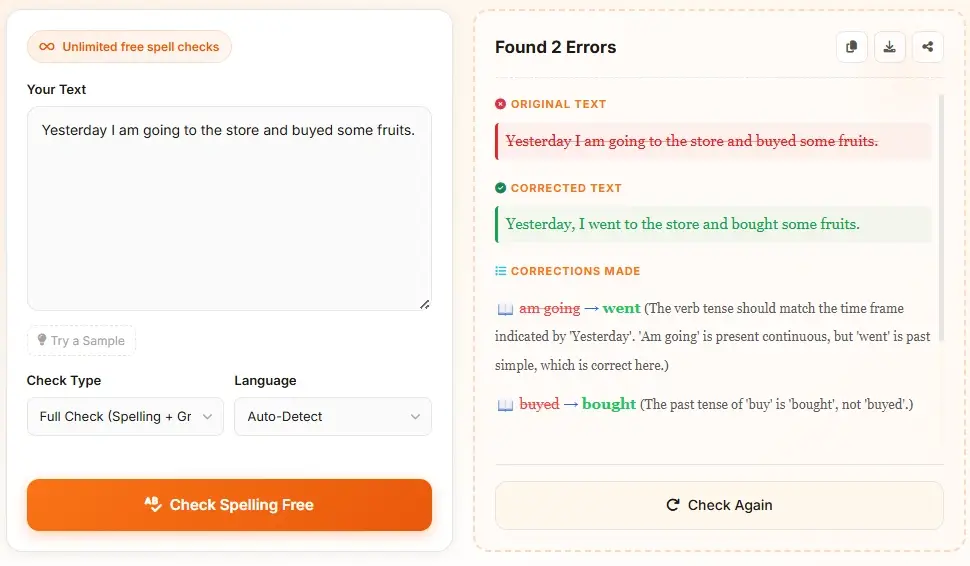
This page is built for the common confusion around Gmail spell check. Gmail suggestions, Chrome spell check, and Smart Compose are related but not identical. Use this tool when you want a cleaner final review step.

Users often mix these together, but they solve different problems.
Built into Gmail compose settings. Useful for on-the-fly spelling, grammar, and autocorrect prompts while you write.
Runs at the browser level. If it is disabled or set to the wrong language, Gmail typing can feel like spell check stopped working.
Suggests how to continue writing. It is a writing aid, not the same thing as a spelling-only or grammar-only checker.
Best for a final pre-send review. Paste the full draft, review corrections in one place, then copy the cleaned-up version back to Gmail.
Use the page that matches your writing task.
Learn how to run spelling and grammar checks in Google Docs and what to do when suggestions are missing.
Use the main checker for general spelling, grammar, punctuation, and multilingual proofreading.
Use this focused page when punctuation is the main issue in an email draft.
Review sentence correctness and readability before copying text into Gmail.
Find Outlook settings, language checks, and fixes when spell check is not working.
Use Google's official help when you need the Gmail settings path for spelling, grammar, and autocorrect suggestions.
Use Chrome Help when Gmail spell check behavior may depend on browser language or spell check settings.
Yes. Gmail includes spelling suggestions, grammar suggestions, and autocorrect settings. You can review them in Gmail Settings under the General tab.
Open Gmail, go to Settings, choose See all settings, then look under General for Grammar suggestions, Spelling suggestions, and Autocorrect. Turn on the options you want to use.
The most common causes are disabled Gmail suggestions, browser spell check settings in Chrome, or language support issues. Users should check both Gmail settings and Chrome language settings.
No. Gmail spell check focuses on errors and corrections. Smart Compose suggests how to continue writing and is a separate feature.
Yes. Chrome has its own spell check settings, including Basic spell check and Enhanced spell check. If those settings are off or misconfigured, spell check in Gmail can appear inconsistent.
Use this page when you want a full review before sending, when Gmail suggestions are not showing clearly, or when you want to proofread a long draft in one clean view before copying it back.
Check Gmail language settings and your browser spell check language first. For multilingual drafts, paste the full text here, choose auto-detect or the right language, then copy the corrected version back to Gmail.
Yes, when you need a free pre-send review and do not want a browser extension. Paste the draft here, review spelling, grammar, punctuation, and wording, then copy the final version into Gmail.
Paste your email above, fix mistakes, and send a cleaner message from Gmail.
Start Checking Now