Microsoft Word のスペルチェック:使い方とよくある不具合の直し方
Word でスペルと文法を確認し、Microsoft Editor と校正言語を見直し、提出前にオンラインで再確認するための実用ガイドです。

要点
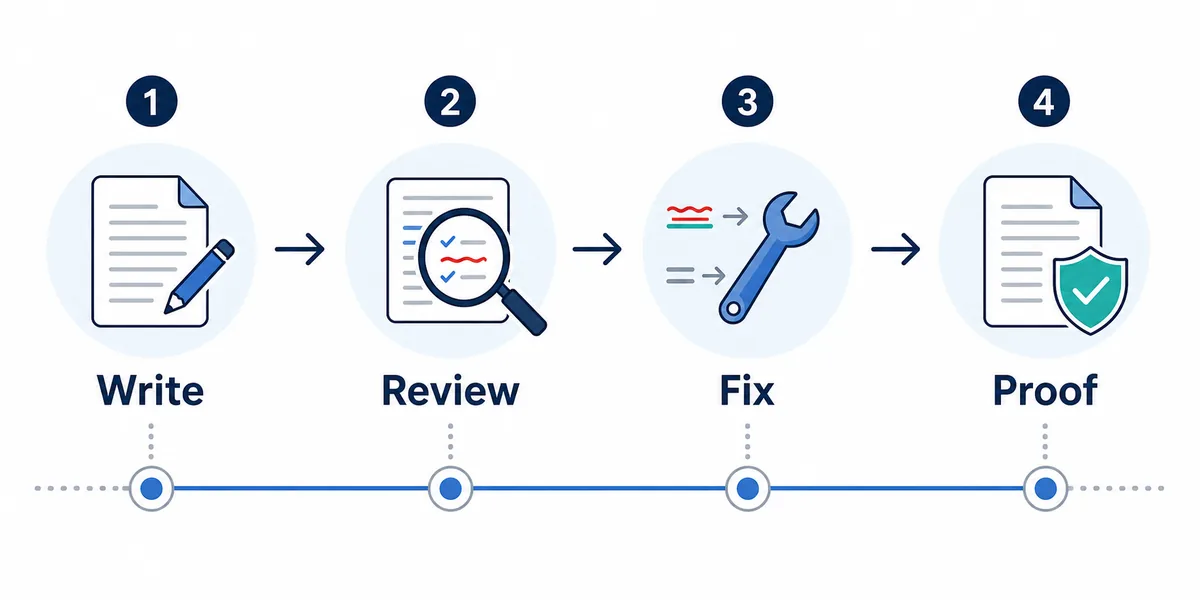
Word では Review > Editor、または F7 でスペルと文法チェックを開始できます。明らかなミスを見逃す場合は、校正言語、Do not check spelling or grammar、Editor の提案設定を確認します。
- 文書を開き Review を選びます。 下線だけに頼らず全体を確認します。
- Editor または Spelling & Grammar を選びます。 表示名はバージョンで変わります。
- 提案を一つずつ確認します。 意味が変わる修正は受け入れません。
F7 は多くの環境で便利なショートカットです。
自動の下線だけでは最終確認の代わりにはなりません。
Best practice
Use Word for document-aware proofing, then do one final read in context before you rely on the corrected version.
Wordで確認する
Word のバージョンが違っても基本の流れはほぼ同じです。
- Save a copy if the document is important. Before a large proofing pass, keep a version you can compare against if a suggested rewrite changes meaning.
- Select the text or leave nothing selected. Selected text limits the check to that passage. No selection usually checks the full document.
- Open Review > Editor. Use the Editor pane to move through spelling, grammar, conciseness, and clarity suggestions.
- Check document language. If the document mixes English variants or pasted multilingual text, set the proofing language for the selected section.
- Accept, ignore, or add names to the dictionary. Add proper nouns only when you are confident they are spelled correctly; otherwise ignore once.
重要な文書では先にコピーを残します。
校正言語、選択範囲、辞書登録を慎重に確認します。
校正とEditor
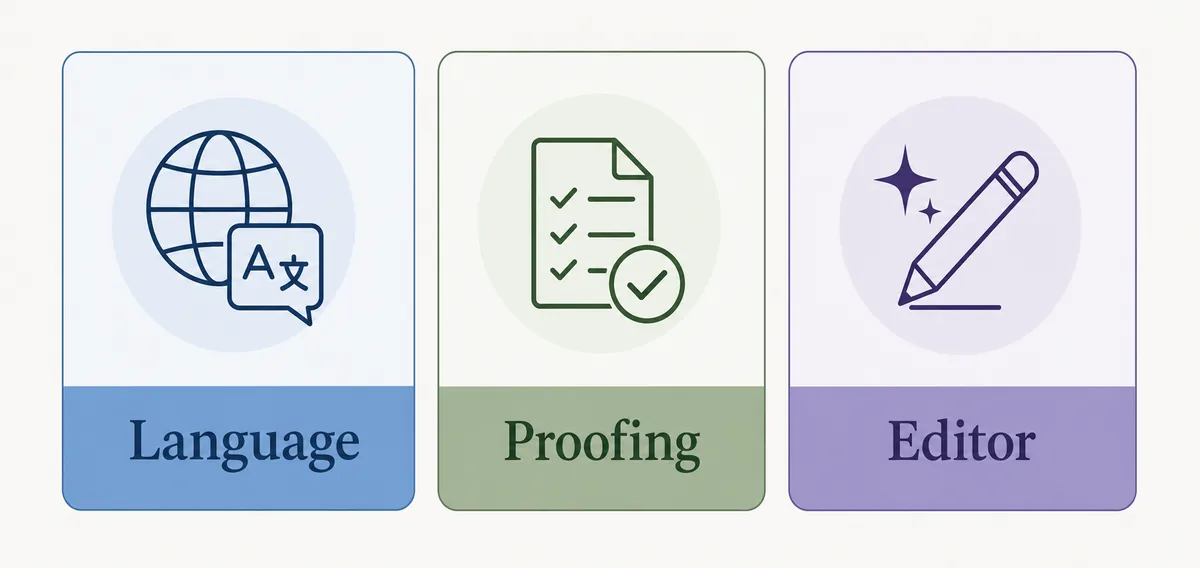
Microsoft Editor は単なるスペル確認に文法と表現の提案を加えます。
文書の文脈は Word、別視点の確認は AI Spell Check が役立ちます。
| 機能 | 向いている用途 | 注意点 |
|---|---|---|
| スペル候補 | タイプミス、重複文字、明らかな綴り間違い。 | 固有名詞、商品名、コード、外国語は正しくても指摘されることがあります。 |
| 文法候補 | 一致、時制、冠詞、句読点、基本的な文構造。 | 文脈や意図した文体を誤解することがあります。 |
| Editor の明瞭さ提案 | 簡潔さ、フォーマルさ、読みやすさ、自然な言い換え。 | すべて受け入れると声やニュアンスが弱くなることがあります。 |
| オンライン最終確認 | Word やブラウザからコピーした後の二回目の確認。 | 比較用に使い、人の判断を置き換えないでください。 |
不具合の対処
問題の多くは校正言語、除外設定、提案の無効化が原因です。
選択部分の校正言語を設定し直します。
| 症状 | よくある原因 | 確認すること |
|---|---|---|
| 下線が出ない | 校正が無効、または非表示。 | Word の校正オプションを確認します。 |
| 一部だけ無視される | その範囲が校正対象外になっている。 | 選択して除外設定を外します。 |
| 正しい語が指摘される | 校正言語が合っていない。 | 選択範囲に正しい言語を設定します。 |
| 専門用語が毎回出る | 辞書に用語がない。 | 確実な用語だけ辞書に追加します。 |
| 貼り付け文だけ変 | 元の書式や言語情報が残っている。 | プレーンテキスト貼り付けや書式クリアを試します。 |
オンライン最終確認
Word の外で使う文章は、オンラインで最後に確認すると安全です。
- Run Word Editor first. Fix document-level issues while you can still see headings, footnotes, tables, and formatting.
- Copy the final text into AI Spell Check. Use the online checker for a fresh pass on spelling, grammar, and punctuation after the main edit.
- Compare the corrected version. Review meaning, names, citations, numbers, and tone before copying anything back.
- Use a focused tool if needed. Use the Punctuation Checker, Sentence Checker, or Grammar Checker when one issue needs closer attention.
戻す前に各修正を比較します。
Privacy note
For sensitive contracts, medical records, unpublished research, or private customer data, prefer local review in Word and avoid external tools unless your policy permits them.
Microsoft Word のスペルチェック:使い方とよくある不具合の直し方 FAQ
Word のスペルチェックのショートカットは?
多くの Word では F7 で開始できます。ノート PC では Fn + F7 が必要な場合があります。
Word がスペルチェックしない理由は?
校正言語、無効なオプション、校正除外、非表示の提案が主な原因です。
Word は文法も確認しますか?
はい。最近の Word は Microsoft Editor でスペル、文法、表現を確認します。
すべての提案を受け入れてよいですか?
いいえ。固有名詞、専門用語、引用、意図した断片、文体は必ず確認します。
AI Spell Check を Word と併用できますか?
はい。文章をコピーし、修正を比較して、信頼できる変更だけ戻します。